Student IT Help
If you are a current student or parent, welcome to the Student IT Help page. Here you'll find helpful guides, resources, and answers to common IT questions. 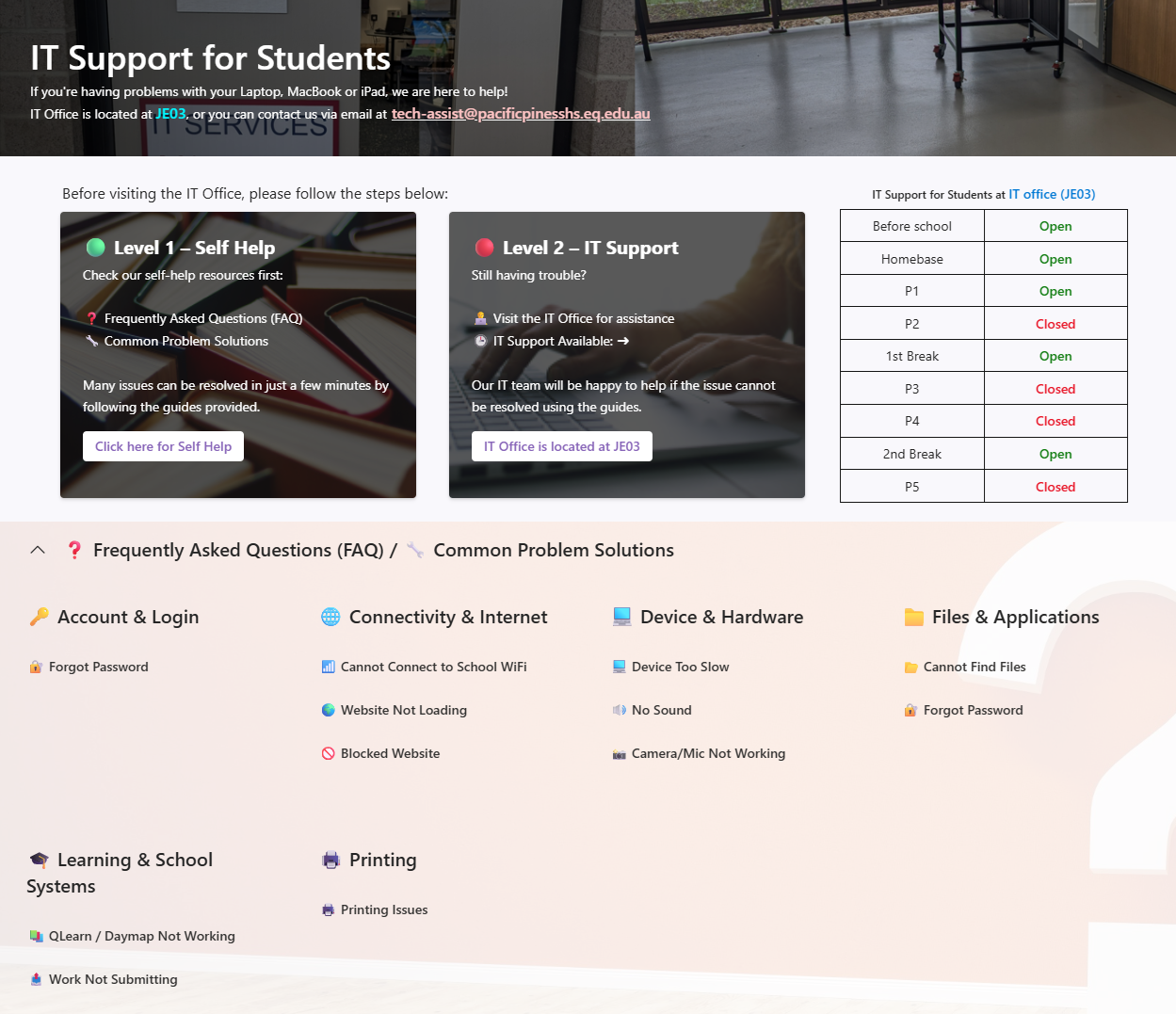
Below are some of the most frequently asked questions from students and parents.
My laptop wont turn on, how do I fix this?
If your laptop is experiencing any of the following, please follow the steps below.
- Stuck on a black screen
- Wont turn on
- Power button lights up but doesn’t turn on
- Freezes on brand logo when turning on
- Solution
Hold down the power button until all lights turn off. Proceed to hold down the power button for another 30-45 seconds. Power the laptop back on (you may require the charger to be plugged in when turning back on if it does not power on by itself).
How can my child backup their work?
Always save your school work files to OneDrive, not the local laptop drive.
Some students saved their work on their local drive, but unfortunately, they lost all their files when their devices had problems.
OneDrive is your personal cloud storage space provided by the Department of Education.
You get 1 TB (1,000 GB) to store all your school work securely.
📘 To set up OneDrive on your school laptop:
Click the Windows Start menu 🔍
Type OneDrive and open the OneDrive app (cloud icon ☁️)
Once opened, look at the bottom-right corner of your screen (system tray) and find the OneDrive cloud icon ☁️
Right-click the OneDrive icon → click the ⚙️ Settings icon (top-right corner) → choose Settings
Select Account → Add an account
Enter your school email address ➜ username@eq.edu.au
Once connected, you’ll see a new folder in File Explorer called 👉 OneDrive – Department of Education
To save your work:
In Word, PowerPoint, or Excel → click File → Save As → OneDrive – Department of Education
Or simply drag files into your OneDrive folder in File Explorer
My child has forgotten their password, how can they get it reset?
If your password is not working properly ❌, ask your teacher to reset it 👩🏫 — don’t keep guessing, as this may lock 🔒 your account.
When it’s reset, log in and set a new password immediately using the rules above ✅.