Windows Users
Step 1) Windows Out of Box Experience (OOBE) setup
For a brand new laptop, please complete the Windows Out of Box Experience (OOBE) setup first. If the device has already been set up, please proceed directly to Step 2.
Step 2) Windows Onboarding
Please follow the Windows onboarding instructions below.
Step 3) Windows Office Install
If Microsoft Office 365 is not installed on your laptop, please follow the instructions to install it. If it is already installed, please proceed to Step 4. Download here: MS Office 365
Step 4) Set Up OneDrive for School Use
Note: The school network blocks personal OneDrive. Use your school OneDrive instead.
- Open OneDrive
- Click the OneDrive icon in the bottom right corner of the taskbar
- Select Settings > Add an account
- Sign in with your school credentials
Step 5) Access Student SharePoint
Student SharePoint is your central hub for accessing school resources, important information, and the applications you need for learning and school activities.
Open a web browser and go to qedu.sharepoint.com/sites/1745/students, and bookmark it.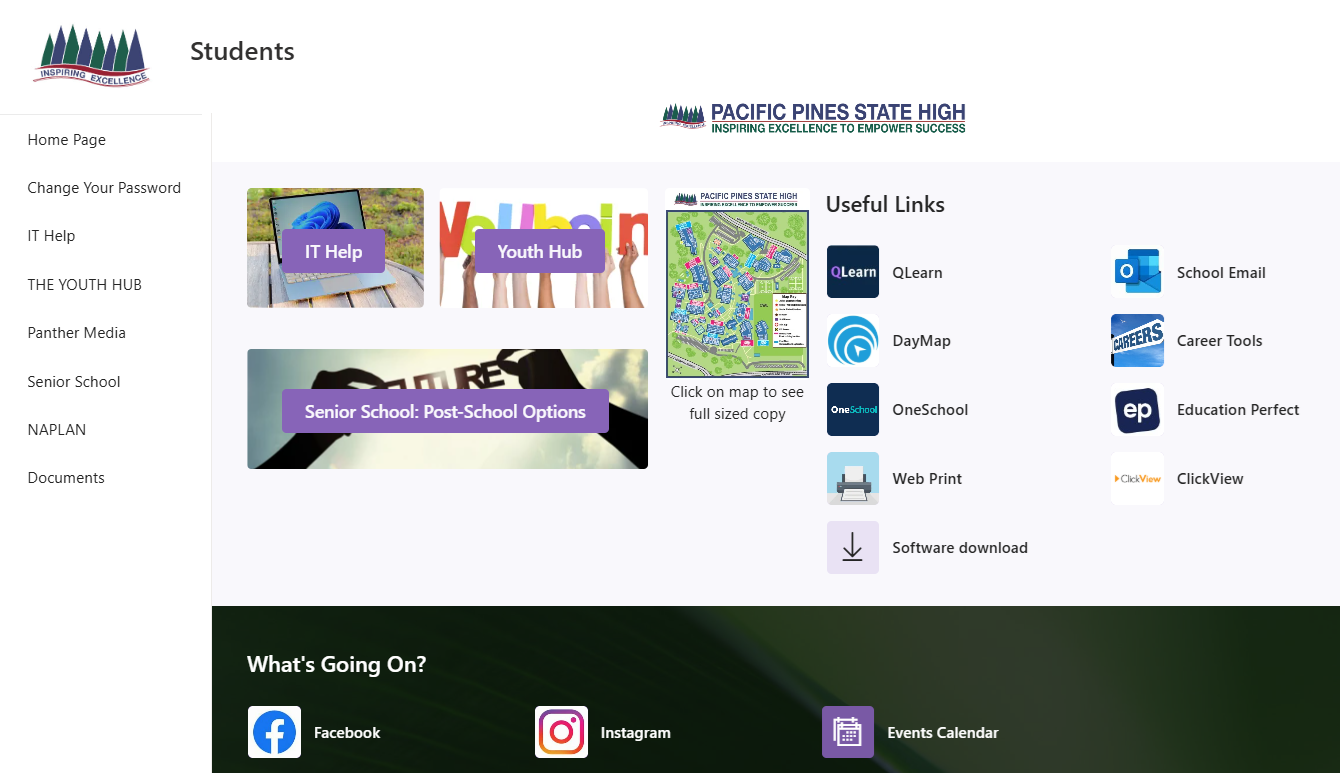
Step 6) Student ICT Awareness – Windows
New students are highly encouraged to complete the Student ICT Awareness – Windows before starting school. This course provides essential ICT knowledge and tips to help you get ready for learning.
Macs Users
Step 1) Macs Onboarding
Please follow the Macs onboarding instructions below.
Step 2) Mac Office Install
If Microsoft Office 365 is not installed on your laptop, please follow the instructions to install it. If it is already installed, please proceed to Step 3. Download here: MS Office 365
Step 3) Access Student SharePoint
Student SharePoint is your central hub for accessing school resources, important information, and the applications you need for learning and school activities.
Open a web browser and go to qedu.sharepoint.com/sites/1745/students, and bookmark it.
Step 4) Student ICT Awareness – Mac
New students are highly encouraged to complete the Student ICT Awareness – Mac before starting school. This course provides essential ICT knowledge and tips to help you get ready for learning.
If you need further assistance after following the guides above, please visit the IT Office (JE03) during our opening hours or contact us at tech-assist@pacificpinesshs.eq.edu.au for further technical assistance.