Use these guides to remove our settings from your BYO device:
Remove Windows Device
Active School Account (Recommended)
Step 1
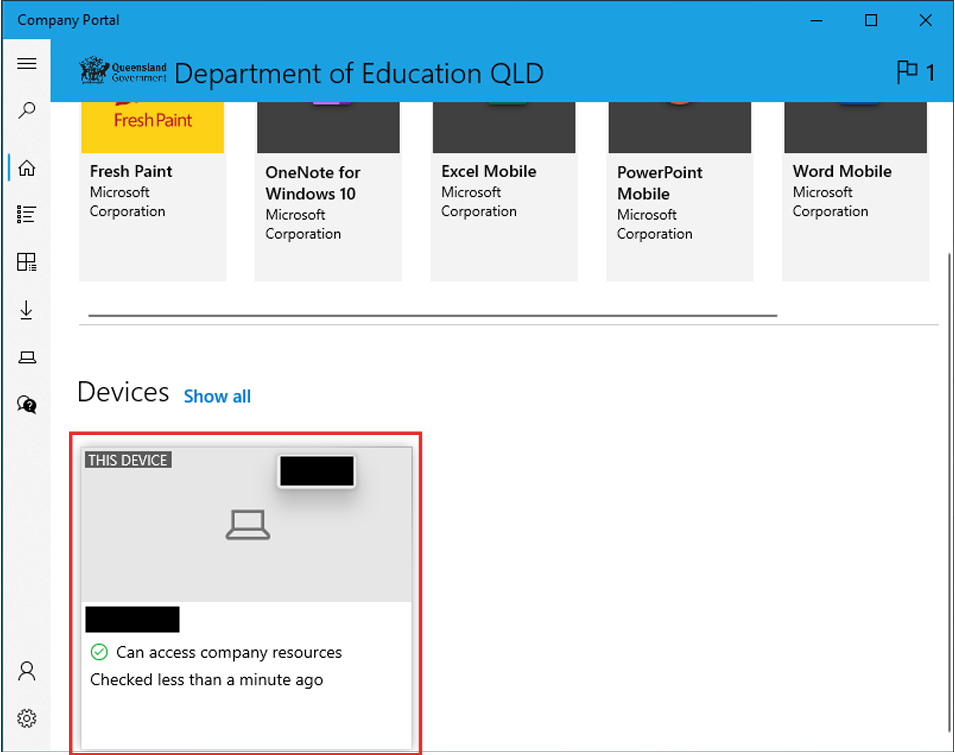
Open the Company Portal app & select the device you are using.
Scroll down the homepage to select the name of the device you are using.
Step 2
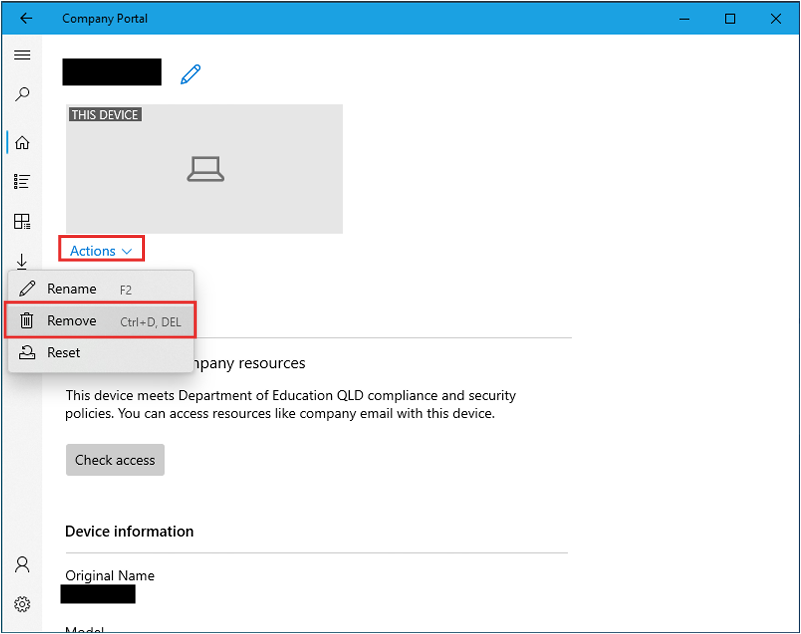
Remove the Device.
Click “Actions” and then “Remove” to remove the management profile, and all College settings and Apps from the device.
Inactive School Account
Step 1
Open “Settings” select “Accounts” and then “Access work or school”.
Make sure “Work or school account” is selected, then click on “disconnect” button.

Step 2
Accept the removal prompt.
Click “Remove” to remove the management profile, and all College settings and Apps from the device.
Remove a MacOS Device
Active School Account (Recommended)
Step 1
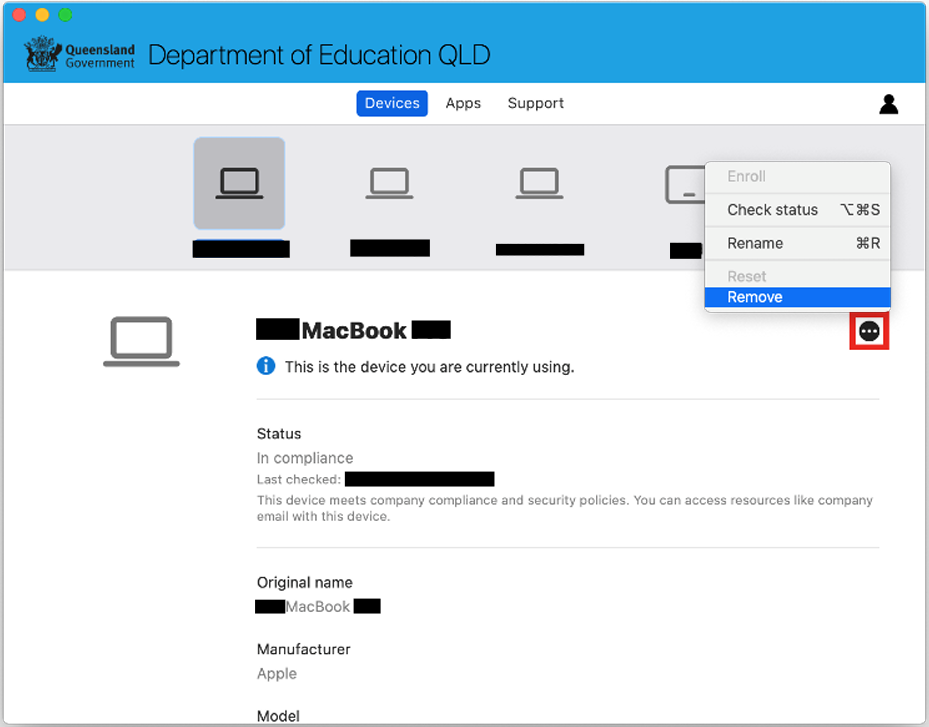
Open the Company Portal App & Select the Devices Tab.
Make sure your current device is selected, then click on the options menu ( ). Select “Remove”.
Step 2
Accept the removal prompt.
Click “Remove” to remove the management profile, and all College settings and Apps from the device.
Inactive School Account
Step 1
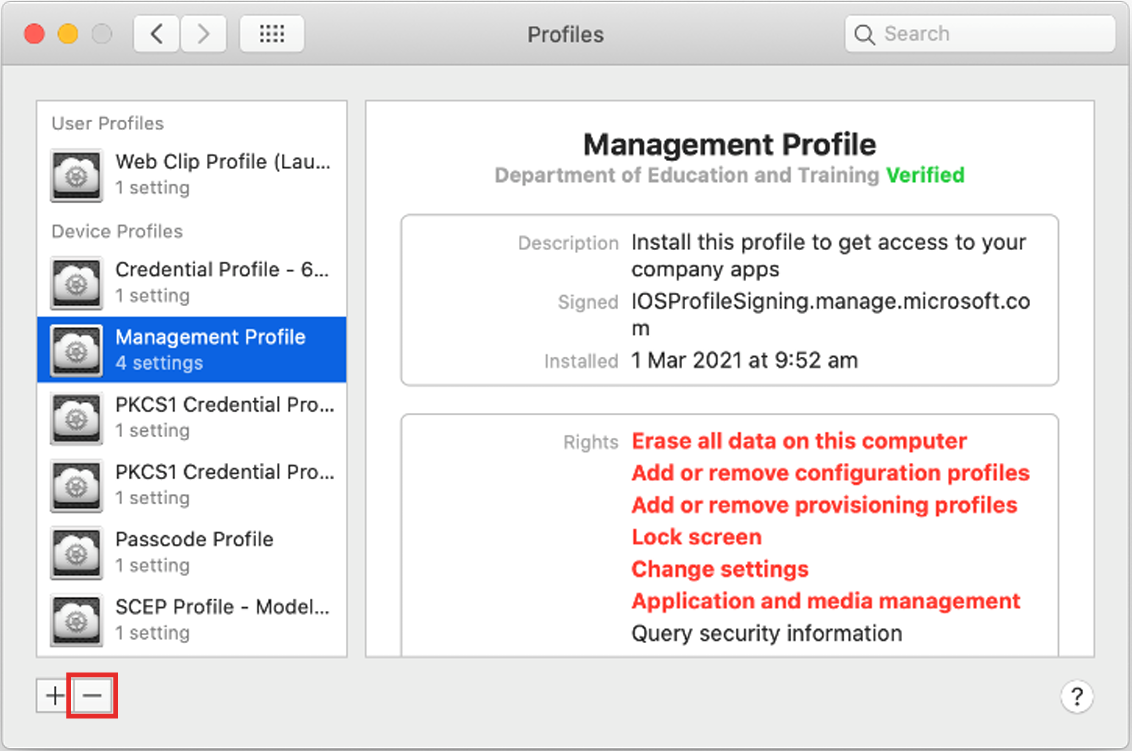
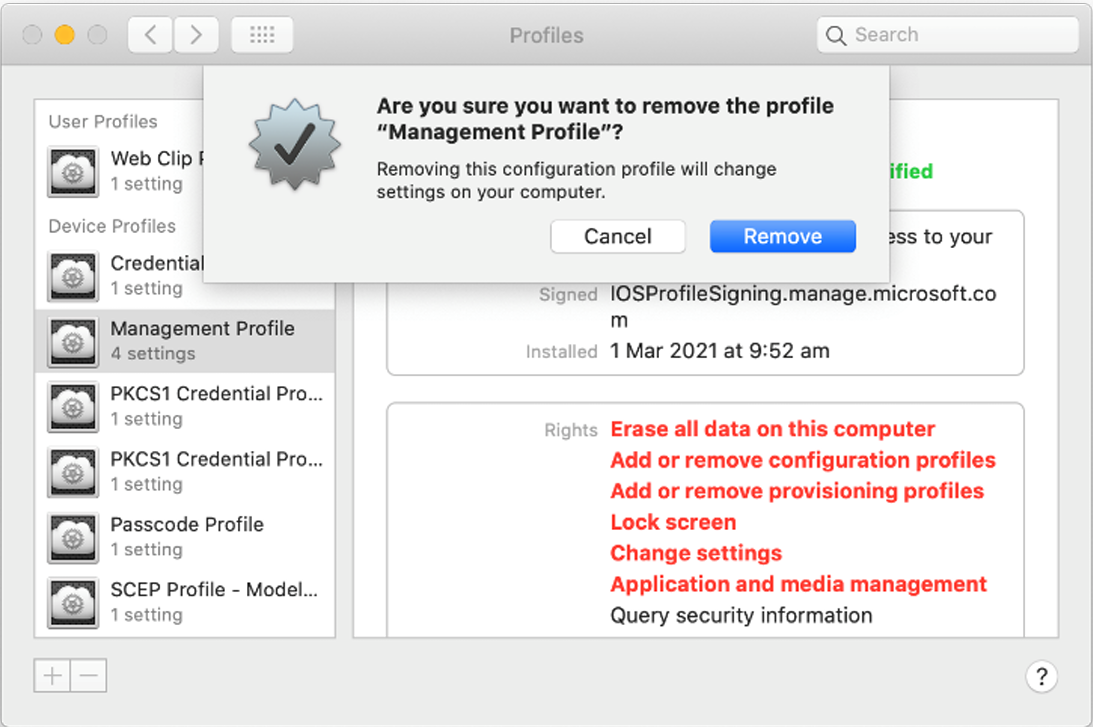
Open System Preferences & select “Profiles”.
Make sure “Management Profile” is selected, then click on minus icon ( - ).
Step 2
Accept the removal prompt
Click “Remove” to remove the management profile, and all College settings and Apps from the device. Enter
your Mac admin password when prompted.
If you need further assistance after following the guides above, please visit the IT Office (JE03) during our opening hours or contact us at tech-assist@pacificpinesshs.eq.edu.au for further technical assistance.